|
Using the Preview VBA in IntelliCAD.
By: Frank Zander
At: Contract CADD Group
Website: http://www.contractcaddgroup.com/
Email: frank.zander@contractcaddgroup.com
Phone: (604) 591-1140
This article explores some of the working and
non-working parts of IntelliCAD's Preview VBA. The topics covered include; what
is VBA, why one would want to use VBA in IntelliCAD, how to setup/access the
preview VBA in IntelliCAD, how an object (line, circle, etc) is described by
IntelliCAD's VBA object model, how Forms and controls on Forms act as VBA
objects. For the adventurous, I have created a small "rubber stamp"
program using working VBA code inside of IntelliCAD. This article was written
for the non-programmer and hopefully the instructions will entice the
non-programmer to try a hand at creating a simple "Rubber Stamp"
program. For those who do not want to type in the code used in this article, the
"Rubber Stamp" program is available for downloading at:
www.contractcaddgroup.com/downloads.htm
What is VBA anyway?
Visual Basic for Applications (VBA) allows
Visual Basic (VB) programmers to work in a familiar Visual Basic environment.
Those not familiar with the Visual Basic environment will find that the
interface is easy to use and straight forward.
Why would one use VBA in IntelliCAD when
LISP is so well supported in IntelliCAD?
Three reasons:
- Speed
To quote Autodesk -- "VBA is fast. VBA is
hosted by AutoCAD and doesn't have the associated overhead of calling out to a
separate process. In internal benchmarks, VBA is significantly faster than
AutoLISP® or Visual Basic running as a separate application. The execution
speed is very close to a compiled C++ ObjectARX DLL-based extension."
Programs created with Visual Basic for Applications execute faster than
programs created outside of an application. For example, a VBA program will
run faster than the same code setup as a standalone VB executable (exe)
program.
- Ease of use.
Visual Basic/VBA interface is easy to learn
and use. VBA-enabled programs (e.g. Word 97, Office 97 Excel 97, AutoCAD 14,
Visio Technical, IntelliCAD, etc) allow the user to learn and program in the
same Visual Basic environment.
- Universality
VBA has become broadly accepted as the
Windows-based customization tool of choice. The VBA interface resembles
Visual Basic 5 (VB5). IntelliCAD users only need to learn one programming
environment (VBA) to be able to program with VB in all VBA enabled programs.
The VBA editor included withIntelliCAD uses the same programming environment
used in Office 97 applications. LISP only works in a handful of CADD
programs, and is clunky, as well as hard to learn.
The VBA interface:
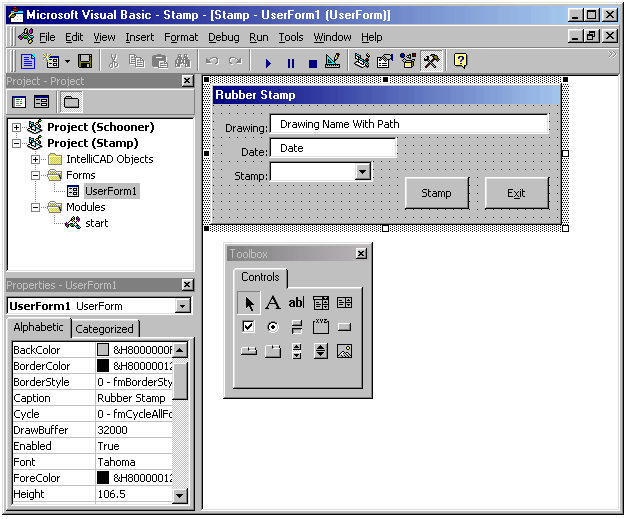
With Visual Basic, the programmer creates a user
interface by adding controls from the Toolbox to a Form. To create a push button
only requires a selection of the button control in the Toolbox and
drawing/placing the control on a Form. It is very easy to create a Form that
looks the way it will be used as a program. Buttons to push, Text boxes for
entry, Option lists, etc, are a breeze to create, size, and change. The ability
to rapidly create a prototype interface for a new program is stunning to say the
least. Also, the resulting Form can be saved and imported into any Windows
VBA-enabled program.
How to setup IntelliCAD for VBA.
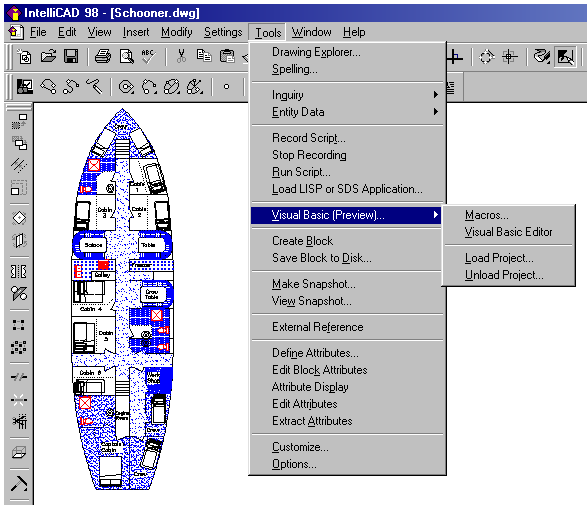
To setup IntelliCAD to run VBA, one needs to
have the advanced Tools menu displayed. To get the Advanced Tools menu
displayed, do the following:
- From the pull down menus select Tools
| Options…
- In the Options dialog set the Experience
level : Advanced
- From the pull down menu select: Tools
| Visual Basic (Preview)… | Visual Basic Editor
Or at the command prompt type: VBA
Additionally, the
Microsoft preferred methodology for launching the VBA environment is by pressing
Alt + F11. This is fully supported
in IntelliCAD, though not in AutoCAD R14.
Note: After you have done some work on your
project it's a very good idea to save your project. IntelliCAD will not prompt
you to save changes to a project when closing IntelliCAD. I ran into this
"gotcha" the hardway. Luckily I only lost about a half an hour of
programming. Save your program/project often and definitely save your project
before you exit IntelliCAD!
To load an existing VBA project into IntelliCAD
do the following:
- From the pull down menu select: Tools
| Visual Basic (Preview)… | Load Project…
Or at the command prompt type: VBALOAD
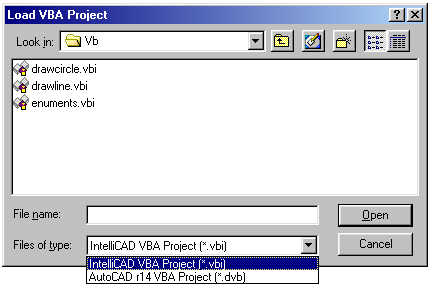
IntelliCAD loads IntelliCAD VBA Project (*.vbi)
and/or AutoCAD r14 VBA Project (*.dvb) files. Also IntelliCAD can load multiple
projects for editing at the same time. AutoCAD r14.01 can open only one at a
time. It looks like, again, IntelliCAD understands Multiple Document Interface
(MDI) better than Autodesk. Opening multiple drawings in IntelliCAD (MDI) makes
editing drawings very productive. Opening multiple Projects for cutting and
pasting code between projects makes programming remarkably productive. This is a
very welcome innovation in IntelliCAD. Sample shipping VBI projects (for cutting
and pasting code) can be located (using the typical/default IntelliCAD install)
at: C:\Program Files\IntelliCAD 98\Api\Vb\…
Describing Objects in VBA.
VBA uses Objects to work with documents. VBA
describes everything within an IntelliCAD drawing (lines, circles, arcs, text,
etc) as an Object. Every Object in a drawing then has properties. A line within
the current drawing has a color property that would be described as Thisdocument.lineobj.color.
Most of the VBA in IntelliCAD to describe or modify drawing objects does not
work. I was extremely fortunate to find and use the Mtext object for the
"Rubber Stamp" project. I had no luck whatsoever in getting the Text
object to create text within an IntelliCAD drawing. Possibly, I missed
something. The VBA preview in IntelliCAD did not work as I had hoped or
expected. The lack of documentation for the preview VBA in IntelliCAD made it a
struggle to create the "Rubber Stamp" project. The preview VBA in
IntelliCAD for using Forms works wonderfully. The documentation for Forms in the
IntelliCAD help-system is extensive and well thought out. Every object (button,
textbox, combobox, etc) on a Form becomes a sub-object of the Form. As an
example… the TextBox1 on UserForm1 is described as:
UserForm1.TextBox1
To set the text information in TextBox1 on
UserForm1 to display the current drawing name with the path, use the following
code:
UserForm1.TextBox1.Text =
Thisdocument.path
Easy! For the curious owners of IntelliCAD, a
picture of the IntelliCAD VBA Object model can be found in the file directory
C:\Program Files\IntelliCAD 98\Api\Vb\ IcadObjectModel.jpg.

Creating a small "rubber
stamp" program using VBA inside of IntelliCAD.
In planning this article, I wanted to create a
simple program that would be useful to all IntelliCAD users and not be specific
to one discipline (e.g. Mechanical, Structural, or Architectural, etc.). I also
wanted to create a very simple program that would be easy for the non-programmer
to create and understand. Hopefully I have achieved this with the "Rubber
Stamp" program. The "Rubber Stamp" program gets the drawing name
and path information from the active document. The current Windows system time
is captured and several items are presented to the user to select the type of
"Stamp" to place on the drawing. The Rubber Stamp program then places
an Mtext object in the drawing when the user presses the Stamp button. The
resulting Mtext object is placed in the drawing at coordinates 1,1 with the
drawing information as shown in the "Rubber Stamp" user interface. For
this example, the information is:
Drawing: d:\drawings\copper sky\schooner.dwg
Date: 07/08/98 10:50:30 AM
Stamp: As Built
To make the "Rubber Stamp" project:
- At the IntelliCAD command prompt type: VBA.
- Create a Form. From the pull-down menus in
the VBA interface select Insert | UserForm.
- From the Properties Window (press F4 to
activate) change the Caption of the UserForm1
to "Rubber Stamp".
- Create the Exit command button; select the
command button control from the Toolbox, place your mouse over the Form and
draw a rectangle to create the button.
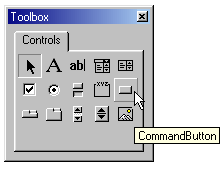
- Change the command button to display Exit
rather than the current text CommandButton1. To change the
text CommandButton1 to Exit look at the
Properties Window (F4) displaying properties-commandbutton1
-- change the Caption information from CommandButton1 to Exit.
Alternately slowly double click the CommandButton1 on the Form and edit the
text in-place. The CommandButton1 should now display Exit.
- Setup the click event on the Exit button...
So far the command button is in location and shows "Exit", but
does nothing. Why? You have not assigned an event to the command button.
What is an event? An event is what happens when a user changes something or
interacts with a program. The event you want to monitor is when the user
clicks the Exit button. Double click the Exit command
button quickly. Notice that VBA view window changes to a View Code window.
Also notice that you are presented with the code following:
Private Sub CommandButton1_Click()
End Sub
In between the Private Sub
CommanButton1_Click() and the End Sub is where you write code. Add the code Unload
UserForm1.
- Save your project…
- Run the project. Press F5 or
select the pull-down menu Run | Sub/UserForm.
- To exit your program click the Exit
button you just created.
- Create the stamp button using the same
technique described at step 4 above. Fill in the code for CommandButton2 as
shown in the section The Code.
- Create the Textbox1, TextBox2 and TextBox3 on
the UserForm1 by selecting the TextBox control
in the Toolbox and draw three textboxs on the Form.
- Copy the code from Private Sub
UserForm_Initialize() to End Sub to setup the information that is displayed
in the Form as it is initialized (loaded).
- Save your project…
- Run the project. Press F5 or
select the pull-down menu Run | Sub/UserForm.
- Select the Stamp options combo box
to choose the appropriate stamp type. Press the Stamp button to place the
stamp in the drawing.
- Note: The drawing will need to be regenerated
and zoomed to the extents to see the stamp.
The Code…
Private Sub
CommandButton1_Click()
' This code is for the Exit button
Unload UserForm1
End Sub
Private Sub
CommandButton2_Click()
' This code is for the Stamp button
' Information filled out/displayed on the
UserForm1 is
' placed into drawing
Dim CADD As Object
Dim Doc As Object
Dim NewText As Object
Dim pt1 As Object
Dim StampText As String
Dim TextOut As String
Dim NewSS As Object
Dim myCommand As Object
' Hide the UserForm1
UserForm1.Hide
' Get the information/selection of the Stamp
ComboBox1
If ComboBox1.ListIndex
<> -1 Then
StampText =
ComboBox1.List(ComboBox1.ListIndex)
End If
' Text information from the UserForm1 to place
in the drawing as MText
TextOut =
"Drawing: " & TextBox1.Text & "\P" & _
"Date: " & TextBox2.Text
& "\P" & _
"Stamp: " & StampText
& "\P"
' Specify the insert point of the text at
location 1,1
Set pt1 =
Library.CreatePoint(1, 1)
' Get the IntelliCAD application as an object
Set CADD = GetObject(,
"icad.application")
' Get the current IntelliCAD Document /
Drawing
Set Doc = CADD.ActiveDocument
' Add a MText object to the drawing
Set NewText =
ActiveDocument.Entities.AddMText(pt1, 8, TextOut)
' Display a message box to the user that the
drawing
' The drawing requires a Regen to see new
Stamp
MsgBox "Drawing Requires
a redraw or Regen to see Stamp"
' *** To redisplay the UserForm1 uncomment the
line below...
' UserForm1.Show
Unload UserForm1
End Sub
Private Sub UserForm_Initialize()
' When UserForm1 loads (Initializes) the
following information is
' filled out in the appropriate areas.
Dim CADD As Object
Dim Doc As Object
' Get the intellicad
application
Set CADD = GetObject(,
"icad.application")
' Get the active Document in the running CADD
program
Set Doc = CADD.ActiveDocument
' Fill in the "text" value in
TextBox1 on the UserForm1 to have the
' Document Path shown
TextBox1.Text = Doc.Path
' Fill in the "text" value in
TextBox2 to have the current system date
TextBox2.Text = CDate(Now)
' Add selections to the Stamp Options
ComboBox1
ComboBox1.AddItem
("Plot")
ComboBox1.AddItem ("Check
Plot")
ComboBox1.AddItem ("For
Approval")
ComboBox1.AddItem
("Approved")
ComboBox1.AddItem ("As
Built")
ComboBox1.AddItem
("Proposal")
ComboBox1.AddItem
("Confidential")
ComboBox1.AddItem ("Top
Secret")
' Set the default displayed information in
ComboBox1 to ListIndex 0
' the 0 list index in this case is the Item
"Plot"
ComboBox1.ListIndex = 0
End Sub
Conclusion
IntelliCAD has laid out the groundwork for
future releases of VBA in IntelliCAD. IntelliCAD has an extensive object
library and library of object functions. However, I found current preview VBA
in IntelliCAD to be at an almost "beta" stage of implementation.
Many of the drawing object and object functions do not operate. I look forward
to a future release of IntelliCAD that fully implements all drawing objects in
VBA.
Editor’s Note: The preview edition of
IntelliCAD 98’s VBA is a very limited subset of the available Objects,
Methods and Properties. All of the IntelliCAD Objects, Methods and Properties
are available to browse throughout the VBA Object Browser by pressing F2
from within the VBA IDE. The Objects are, for the most part, stubbed out and
are not currently live. This will all be live in a future release.
|