Connecting from design to documentation
AutoCAD 2000 is not just about making you more productive; it is also about better communications. AutoCAD 2000 software includes many new features and enhancements intended to help you better communicate design intent. These features include the introduction of a multiple layout concept, the ability to create nonrectangular viewports, the addition of Lineweight as an object property, text-handling enhancements, OLE text-height scaling, and a more flexible plotting interface. This all adds up to easier to set up, faster plotting that gives you the level of control required to satisfy your plotting needs.
Layouts—Multiple Paper Space Layouts
The new Layouts feature in AutoCAD 2000 software gives you the ability to create multiple paper space layouts in a single drawing. You can now visually compose a drawing on a virtual sheet of paper. Aided by visual cues that indicate plotting area, configuring a layout for plot scale, paper size, plot area, paper orientation, and the plot device becomes a simple, straightforward task. Multiple drawing layouts enable you to consolidate multiple drawing sheets into a single drawing file. This greatly reduces the time and effort required to set up and configure your drawing files for plotting. Since each layout stores its own plot settings, you have unprecedented plotting control over drawing output.
- Layout Creation. You can quickly and easily create individual layouts by using the layout wizard, using layout templates, or creating one from scratch. Once created, a layout from any drawing can be inserted into the current drawing using the AutoCAD DesignCenter or the layout import command¾ saving time and maintaining drawing standards.
- Page Setup. Page Setup provides you with the ability to specify plot parameters such as plot device, paper size, scale factor, plot orientation, and plot area in each layout. This provides you with Plot Preview-like feedback on how your layout will appear when plotted. These settings are saved within each layout enabling you to plot each layout the same way every time without having to reconfigure your plot settings from the last plot. As a result, you can leverage the work in a single drawing for many drawings.
- Named Page Setups. After you have configured the Page Setup for your layouts, you can name and save them into the drawing file for later use. This provides you with the on-the-fly flexibility and convenience of changing a layout’s Page Setup settings from one configuration to another. Additionally, you can also import Named Page Setups from other AutoCAD 2000 drawings.
- WYSIWYG Layouts. The Layouts feature provides a preview of exactly what will be plotted out. The previewlike feedback displays a paper border that accurately indicates the plot area for the layout based on paper size, scale factor, paper orientation, and offsets. The layout also accurately reflects lineweights, screening, color, fill patterns, and so on. With WYSIWYG layouts, you are in full control of your output and the plotting process is reduced to the simple act of pressing a button.

AutoCAD 2000 Software’s Model and Layout Tabs
In AutoCAD 2000 software, viewports can be defined or clipped with any closed shape; they no longer need to be rectangular. This capability makes for a more efficient use of drawing presentation space and gives you the flexibility to better present viewport data by designing your viewports to fit the minimal area necessary.
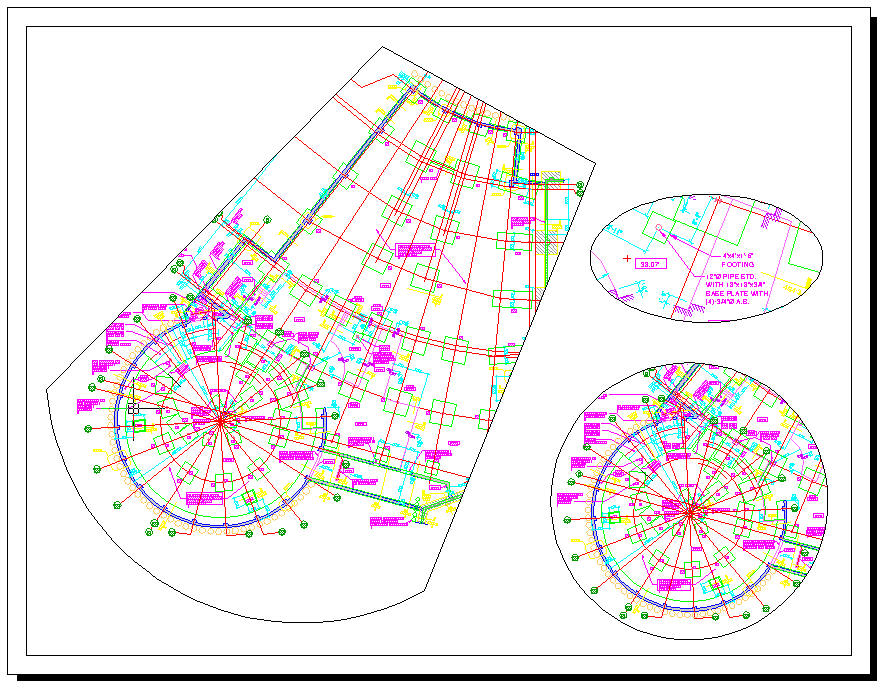
Nonrectangular Viewports
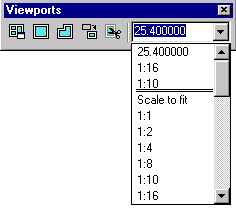 A new Viewport toolbar enables you to
easily assign standard viewport scales, like 1:1, 1:4, and 1:100, and to type in any
custom scale to accommodate your needs. Once you have set the scale for a viewport, you
now have the option with AutoCAD 2000 software to lock the viewport’s scale. Using
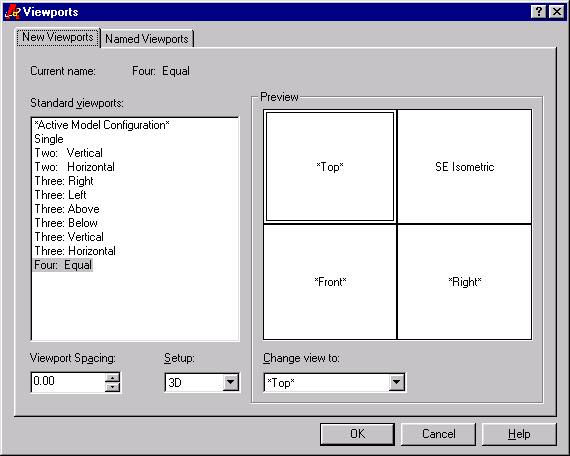
the new Viewports dialog, you can easily set up a layout for standard orthographic views.
These tools provide an efficient means of setting, saving, viewing, and configuring
various viewports and enable a more efficient use of drawing space.
A new Viewport toolbar enables you to
easily assign standard viewport scales, like 1:1, 1:4, and 1:100, and to type in any
custom scale to accommodate your needs. Once you have set the scale for a viewport, you
now have the option with AutoCAD 2000 software to lock the viewport’s scale. Using
the new Viewports dialog, you can easily set up a layout for standard orthographic views.
These tools provide an efficient means of setting, saving, viewing, and configuring
various viewports and enable a more efficient use of drawing space.
Viewports Toolbar
Virtually all AutoCAD users generate output in one form or another. Most generate paper plots and, in AutoCAD 2000, many will want to produce DWF (drawing web format) or ePlot output as well. The streamlined plotting in AutoCAD 2000 offers ease of use, power, and flexibility tailored to your needs, and the new Plotting feature modernizes and updates AutoCAD software’s plotting functionality. The traditional ADI® plotter drivers have been replaced with new Heidi® Device Interface (HDI) plotter drivers.
In addition to its technical advantages, HDI has been used to create a new set of modern graphical user interfaces based on the Windows standard. Both the layout and plotting enhancements provide consistent output with little effort and improved plot performance. Consider these advances:
- Plot settings are saved in the drawing, reducing setup time and providing consistent plotting.
- New Plot dialog emulates the Windows print interface so it’s easier to learn and use.
- Many drawing files can now be incorporated into a single drawing file with multiple layouts.
- Plotting becomes simpler and more efficient since Plot Setups are stored on a per-layout basis.
- Plot preview provides WYSIWYG plotting by incorporating lineweights, True Color, linetypes, screening, fill patterns, paper size, plot area, and scale factor, saving time and eliminating guesswork.
- Plotter configurations are portable and can be easily shared with other project members, saving time, reducing confusion, and enhancing collaborative efforts.
- Plot Styles enable you to move away from color-based plotting by assigning a plot style to the layers or objects in your drawing. The named Plot Style will then determine the appearance of your drawing when plotted. Plot Styles can also be assigned based on an object’s color, as in R14. A Plot Style now controls plot appearance characteristics on any plot device except pen plotters. Plot Style controls the lineweights, linetypes, color (dithering and grayscale), screening value, fill pattern, line end style, and line joint style of drawing objects when they are plotted. Plot Styles are saved in a file called a Plot Style Table (formerly pen assignments); the table is then attached to your drawing for plotting. Plot styles can be displayed in a drawing layout and are displayed in a full plot preview. This enables you to see exactly what your plot will look like before you plot it.
- Screening enables you to control the display intensity of plotted objects so you can emphasize portions of your design. It also yields more effective, easier-to-understand plots.
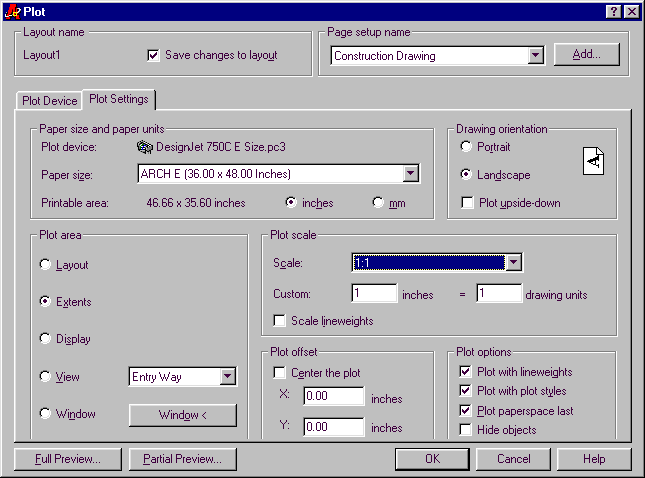
Plot dialog—Plot Settings Tab
If you do not wish to use Plot Styles to control line thickness, AutoCAD 2000 software introduces a new object attribute¾ Lineweight¾ to layers and objects in your drawing. Lineweights can be assigned from the Object Property toolbar and in the Layer Properties Manager dialog. Lineweight represents another AutoCAD 2000 WYSIWYG enhancement to viewing and plotting, giving you more control over screen display and printed output.
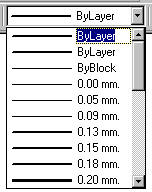
AutoCAD 2000 Software’s Lineweight Attribute
A new, easy-to-use Scale OLE Object dialog provides a variety of ways to control the size of OLE text objects, leading to more accurate plots and better integration with other Windows applications. You can access the new dialog at any time during an editing session. You can scale OLE objects with the following methods:
- By entering a width and height in AutoCAD units.
- By assigning a height corresponding to the point size of a font contained in the OLE object.
- As a percentage of the current height and width.
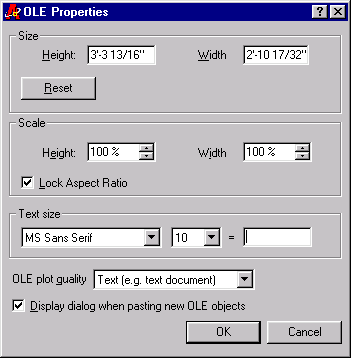
OLE Properties Dialog
AutoCAD 2000 breaks the 255-color barrier with 24-bit True Color support of rendered and raster images, increasing the on-screen and hard-copy quality of both. The standard ZOOM command can also now be used on rendered images.